Setting up WhatsApp for business looks simple on the surface: download an app, fill in a profile, start chatting. But there’s a real difference between a setup that just answers inbound questions and one that’s actually ready to support your team and your marketing as the business grows. This guide walks through all of it: getting the free WhatsApp Business App set up properly, when and how to move to the WhatsApp Business API, and what to add on top of either one so your account is genuinely ready for campaigns, not just conversations.
Before You Start: App or API
The WhatsApp Business App is a separate, free app from regular WhatsApp, built specifically for businesses. It adds a proper business profile, a catalog, labels for organizing chats, and basic automated messaging that the personal app doesn’t offer. It’s built for one person managing one number from one device, which makes it a solid fit for a solo shop owner or a small team still handling most chats manually.
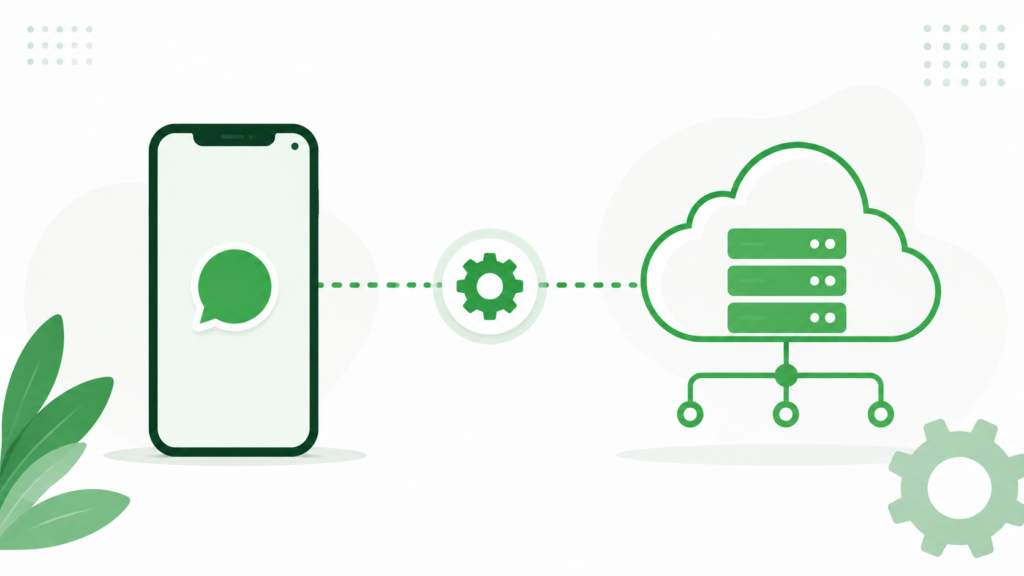
The WhatsApp Business API, by contrast, isn’t an app you install. It’s a set of tools that connects WhatsApp to your own systems, a CRM, a website, a support desk, and supports multiple team members, deeper automation, and real bulk campaigns. Most businesses start with the app and move to the API once they outgrow its single-device, single-person design.
Before you begin either path, keep a dedicated phone number ready, ideally one not already registered on personal WhatsApp, along with your business logo, a short description of what you do, and your address or service area if relevant. Having these ready makes setup faster and avoids a half-finished profile sitting live for days.
Setting Up WhatsApp Business App
Downloading and Registering
WhatsApp Business is free on both the Google Play Store and Apple App Store. After downloading, verify your phone number through the standard OTP process. If you’re moving an existing number over, you’ll be prompted to transfer your account, which keeps your chat history intact.
Creating Your Business Profile
Your business name and profile photo are the first things a customer sees, so use your actual brand name and a clear logo rather than a personal photo. Keep your description short and specific: what you sell, who you serve, and anything that sets you apart. A vague description like “quality products at best prices” says nothing useful, while “handmade leather bags, custom orders welcome” tells a customer exactly what to expect. Add accurate business hours and, where relevant, a physical address or service area to set expectations and build legitimacy.
Profile Picture Guidelines
Use a square image with your logo centered and readable at a small size, since that’s how it typically appears in a customer’s chat list. Avoid text-heavy or cluttered designs that lose clarity once shrunk down.
Setting Up Your Catalog
The catalog feature lets customers browse what you offer directly inside the chat, without needing a separate website. Add clear product images, accurate pricing, and a short description for each item, since a catalog with blurry photos or missing prices tends to generate more back-and-forth questions than it saves. If you have more than a handful of products, group similar items together so customers can scan quickly.
Setting Up Automated Messages
A greeting message that fires the moment a new customer messages you sets the tone immediately, even outside business hours. An away message covers you when you’re unavailable, reducing the number of customers who message once, get no reply for hours, and move on to a competitor. Quick replies let you save and reuse answers to frequently asked questions, like shipping timelines or return policies, saving meaningful time once message volume picks up.
Organizing With Labels
Labels let you tag chats as “New Order,” “Pending Payment,” or “Follow Up,” which becomes genuinely useful once you’re juggling more than a few conversations a day. Without labels, older conversations tend to get buried and forgotten, quietly costing sales over time.
Getting Verified
WhatsApp offers a basic confirmed business account status through the app. Full official verification with a green tick badge is only available through the WhatsApp Business API, not the standalone app. Even without the green tick, a complete profile with accurate details builds trust faster than an empty or inconsistent one.
Setting Up WhatsApp Business API
Requirements Before You Start
You’ll need a registered business with verifiable details, a Meta Business Manager account, a dedicated phone number not currently active on the standard app, and a clear idea of your first use cases, whether that’s support, order updates, or marketing broadcasts. The API runs through Meta’s infrastructure, so setting up your Business Manager account correctly at the start avoids delays later.
Choosing a WhatsApp Business API Partner
You can’t apply for full API access directly as an individual business the way you install an app. You go through an official WhatsApp Business API partner, a platform that handles the technical connection to Meta, template submission, and ongoing account management. Look for transparent pricing, responsive setup support, and a platform that pairs the API with a proper CRM layer, giving you a best crm with whatsapp integration setup rather than a bare messaging tool.
Business Verification With Meta
Meta requires your business to be verified before granting full API access, typically involving your legal business name, address, website, and sometimes a registration document. Verification timelines vary, usually from a day to a couple of weeks, and submitting accurate, consistent information the first time is the biggest factor in avoiding delays.
Setting Up Your Number
You can either migrate your current WhatsApp number to the API or activate a new one. Porting an existing number keeps your chat history and contact recognition, but that number can no longer be used on the standard Business App once the move is complete. Once verification is approved, your provider walks you through registering the number, usually with a short downtime window.
Setting Up Message Templates
Any message sent outside a customer-initiated 24-hour conversation window needs a pre-approved template. Building a small starter library, an order confirmation, a shipping update, a simple promotional template, before you go live means you’re not stuck waiting on approvals the moment you need to send something. Keep template language clear and avoid overly promotional phrasing in utility templates, and review whatsapp message template testing tips before your first submission batch to reduce rejections.

Automation and Team Access
Unlike the app’s basic greeting and away messages, the API supports genuine automation: routing conversations by keyword, triggering messages based on events like an order status change, or handling FAQ responses without a human involved. If more than one person will be replying to customers, set up role-based access so conversations can be assigned and tracked without overlap, one of the clearest improvements over the app’s single-device design.
Connecting to CRM and Commerce
The API by itself is just a messaging channel. Its real value shows up once it’s connected to a proper CRM, so conversations, contact history, and purchase data live in one place. A Best WhatsApp CRM setup is what makes segmentation, automation, and reporting actually usable. For online stores, setting up WhatsApp Commerce features during initial setup means your catalog reflects live stock and customers can move from browsing to checkout without leaving the chat, worth building in early rather than bolting on later.
Testing Before You Go Live
Before sending your first real campaign or enabling automation for your full contact base, test with a small internal group or limited segment. This catches template issues, broken automation logic, or formatting problems before they reach your entire audience, and it’s worth confirming delivery and response tracking are flowing correctly into your dashboard before scaling up.
Getting Marketing-Ready, Not Just Set Up
A profile and catalog are the foundation, but they’re just the starting point. A rushed setup doesn’t just look unfinished, it quietly limits what you can do later. A catalog with no structure makes segmented promotions harder to plan, and a contact list with no tags means every broadcast has to go to everyone.
Setup by Business Type
Retail businesses benefit most from a catalog that mirrors their in-store categories, paired with quick replies for sizing, availability, and delivery questions. Service businesses, from clinics to consultants, get more value from appointment-focused automation: booking confirmations and reminder sequences, with the catalog mattering less than clean scheduling automation. E-commerce brands should prioritize connecting WhatsApp to store data early, so catalog stock stays accurate and order updates trigger automatically.
Building Your Contact List the Right Way
Rather than importing every contact you’ve ever had, start your list with people who’ve genuinely opted in, through a website form, a QR code in-store, or a checkout prompt. A smaller, engaged list outperforms a large, unqualified one almost every time a campaign goes out. Tag contacts by source, interest, or customer type before you send your first campaign, since this upfront work is what makes a targeted whatsapp business marketing campaign possible instead of a generic blast. If broadcasts are part of your plan, make sure your platform supports a genuine online bulk WhatsApp sender setup with segmentation built in.
Preparing for Your First Campaign
Before any list-wide send, test your message on a small segment first. Running an A/B test WhatsApp marketing campaign process, even something as simple as comparing two send times or two CTA phrasings, catches problems before they reach your full audience. It’s worth reviewing best time to send whatsapp marketing messages guidance early and testing it against your own audience rather than assuming a generic benchmark applies. Treating your first few campaigns as a learning process, following a proper whatsapp campaign split testing guide approach, means each one teaches you something that improves the next.
Learning From Proven Examples
Rather than designing your first campaign entirely from scratch, look at successful whatsapp marketing campaigns from businesses similar to yours for structural ideas, like sequencing a launch announcement or timing a festive offer. Reviewing real whatsapp promotional campaign examples before your first send gives you a sense of what specificity and framing look like in practice, and browsing WhatsApp marketing tips and a Marketing Campaign Examples playbook is often faster and lower-risk than inventing a format from zero.
Setup Checklist Summary
- Complete business profile with a specific description, not a generic tagline
- Structured, categorized catalog rather than a flat product list
- Quick replies and automation matched to your business type
- A contact list built from genuine opt-ins, tagged by segment
- A small starter template library ready before your first campaign
- A plan to test sends on a small segment before scaling to your full list
Common Setup Mistakes to Avoid
- Leaving the business description blank or generic
- Skipping the catalog and only sharing products through text messages
- Not setting a greeting or away message, so early customers get silence
- Submitting incomplete or inconsistent business details during API verification, which delays approval
- Waiting until launch day to start building templates
- Importing an entire old contact list without consent or segmentation
- Sending the first real campaign to the full list with no prior testing
- Treating setup as a one-time task instead of revisiting it as the business grows
Conclusion
A solid WhatsApp Business setup takes an afternoon for the basics, longer if you’re moving to the API, but skipping steps at any stage tends to cost more in lost inquiries and weak campaigns than the time saved skipping them. Work through your profile, catalog, and automation in order, decide deliberately when it’s time to move from the app to the API, and build your contact list and testing habits before your first big campaign rather than after a disappointing one. That order of operations is what turns a basic WhatsApp setup into one that’s actually ready to grow with the business.
Frequently Asked Questions
How do I set up a WhatsApp Business account for the first time?
Download the free WhatsApp Business App from the Play Store or App Store, verify your number through OTP, then complete your business profile with a logo, description, and hours. From there, add your catalog and set up a greeting message so new customers get an immediate response.
What’s the difference between setting up WhatsApp Business App and WhatsApp Business API?
The Business App is a free download you set up yourself in minutes, built for one person on one device. WhatsApp Business API requires going through an official provider, completing Meta business verification, and setting up templates and team access, but supports multiple users and real automation.
Do I need to verify my WhatsApp Business account to use it?
No, you can use WhatsApp Business fully without formal verification, though a complete and accurate profile builds more trust with customers. The official green tick badge specifically requires WhatsApp Business API, not the standalone Business App.
How long does WhatsApp Business API setup take?
Setup typically takes anywhere from a few days to a couple of weeks, depending mostly on how quickly Meta’s business verification is approved. Submitting accurate, consistent business details upfront is the biggest factor in keeping the timeline short.
Can I use my existing WhatsApp number when I upgrade to the Business API?
Yes, you can migrate your existing number to WhatsApp Business API, which preserves contact recognition and chat history. Once migrated, that number can no longer be used on the standard Business App.
How do I prepare my WhatsApp Business setup for marketing campaigns?
Start by tagging and segmenting your contact list instead of treating it as one large group, and build a few message templates in advance so you’re not waiting on approvals when you want to launch. Testing your first campaign on a small segment before sending to everyone is also a key part of getting marketing-ready.